
This guide explains how to unlock a report that was already approved by a manager, in the Detailed Attendance report or the IIA report.
Removing the lock
Open the employee's Detailed Attendance report and click the button at the bottom of the report.
If the button does not appear, you may not have permission for this action. To get that permission, from an admin account go to Settings, then Roles Management.
- Select the relevant role the manager is in.
- Click the pencil icon to edit it.
- In the role editing screen, click the Reports tab.
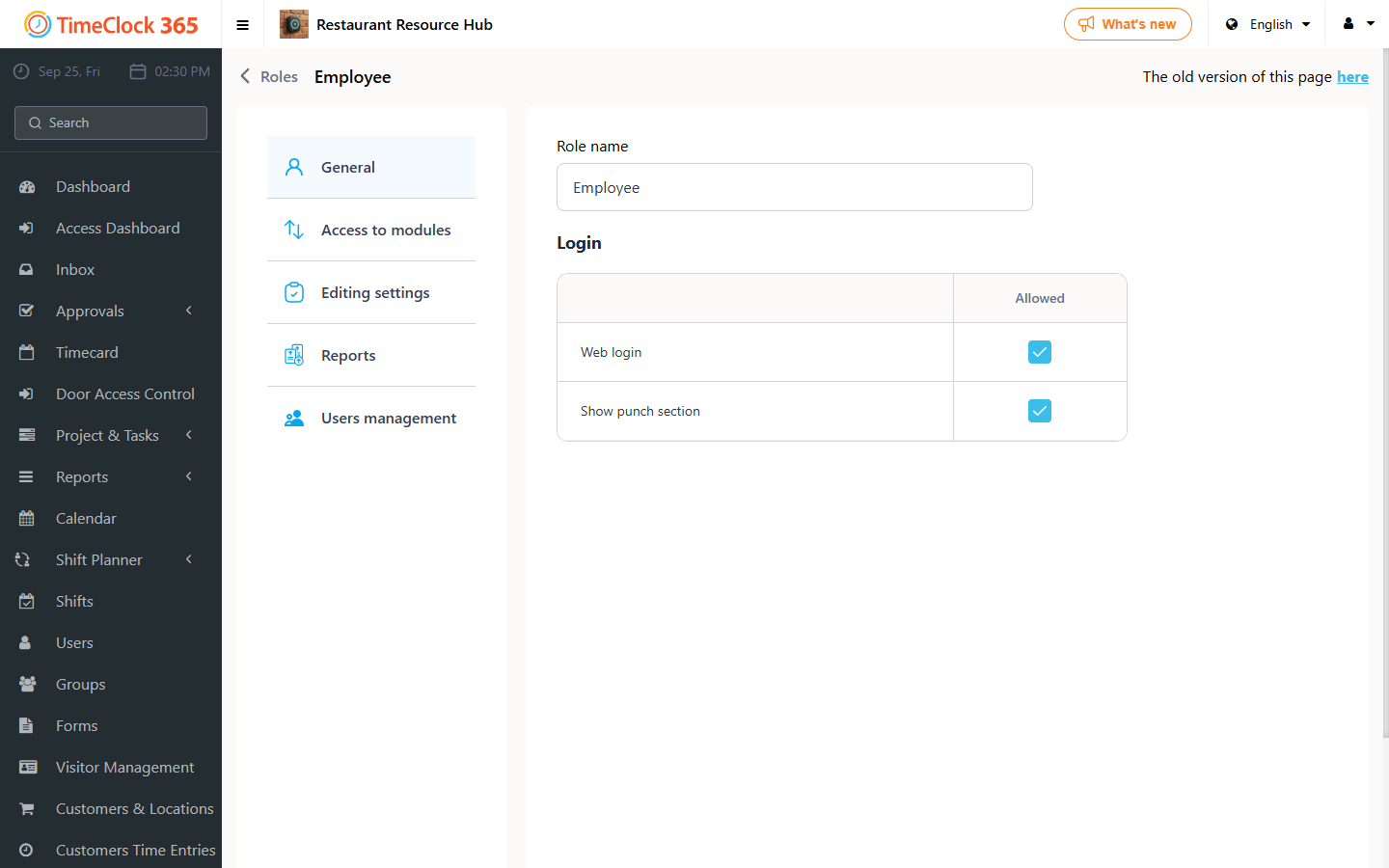
Note: check which users are assigned to this role - anyone in it will be able to unlock approved reports.
- Check "Reopen approved report".
- Click Save at the bottom of the page.
How to cancel the employee's report approval
If only the employee approved the report, a manager can unlock it by clicking "Reject Employee Approval" at the bottom of the Detailed Attendance report. The employee can then make changes and approve again.
If you want to reject the IIA report approval, go to Reports, then IIA report. If you want to reject the Detailed Attendance report approval, go to Reports, then Detailed Attendance.
Select the employee and the period, then click View. On the IIA report, an "Reopen report for editing" button appears at the top left; on the Detailed Attendance report, it appears at the bottom of the page, near the totals.
After clicking the button, the report is unlocked and both the manager's and employee's approvals are removed.
Note: you will not see the cancel-approval button if the employee approved only part of the report.
In that case, check which dates show a green checkmark in the attendance report, uncheck the "Period" checkbox, and instead select the specific dates that show the green checkmark.
For example: if the employee approved the report from May 1 to May 19, each of those dates shows a green checkmark, while unapproved dates do not.
To unlock a report like this, uncheck the "Period" checkbox, filter the dates from May 1 to May 19, and click View.
The button to reject the employee's approval, or to approve the report, will then appear.
Note: if you don't see the option for Roles Management under Settings, contact technical support.