
When an employee approves their attendance report, it becomes locked for editing. If the text "Employee approved this report on DD/MM/YYYY hh:hh" appears where the approval button used to be, that is the date and time the report was approved and locked.
To unlock the report for editing, the employee's manager or an administrator needs to open the employee's attendance report for that period and reject the approval:
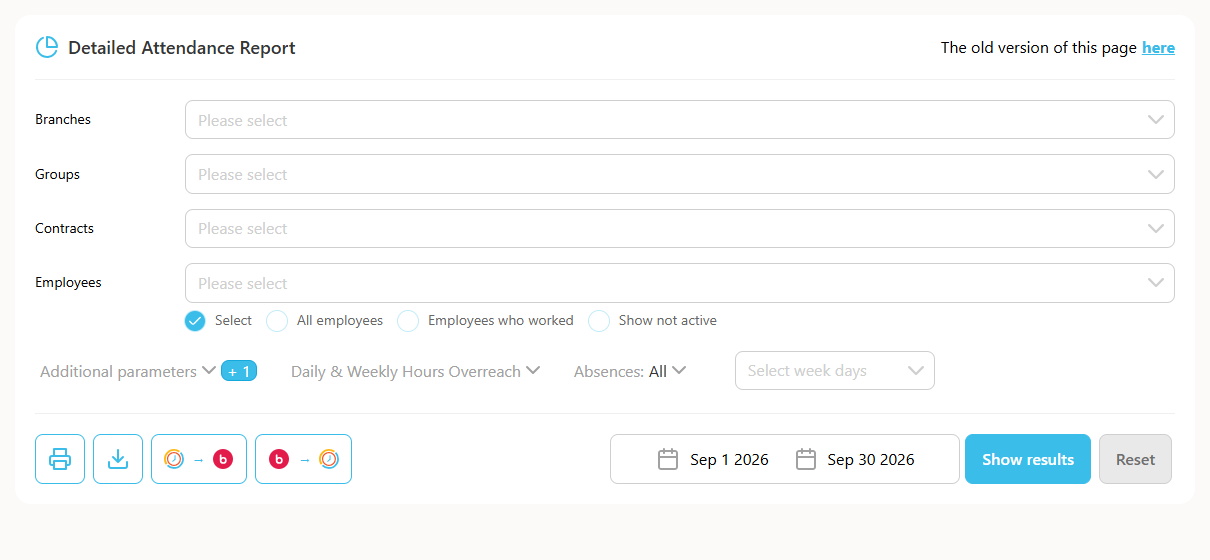
- Go to Reports, then Detailed Attendance report.
- Choose the employee.
- Choose the period.
- Click Show.
- Click "Reject employee approval".
If the report was also approved by the manager, a separate guide explains how to unlock it for editing.
Other reasons a report is locked
A report can be blocked for editing for several reasons: it was approved by the employee or manager, the user lacks editing permission, the report is locked by the company or contract settings, or the contract's editing limit was exceeded. The report status appears at the top right, and approved dates are marked with a green checkmark.
The user has no permission to reject reports
Ask your group manager or administrator to reject the report or grant you the permission. To give a role this permission, go to Roles, select the role, scroll to the Reports section, tick the option to reject or decline reports, and click Save. This affects all users assigned to that role.
The report is locked by settings
Locking can come from the company or contract settings. Company settings are under Company Profile, in the Settings tab. Contract settings are under Contracts, in the relevant contract, in the Reports section. A locked report can only be edited by an administrator. You can change or remove the lock for the whole company or for a specific contract.
The contract editing limit was exceeded
When the monthly limit of edits is exceeded, the report is locked and only an administrator can edit it. To change or remove this limit, go to Contracts, open the relevant contract, and look in the Web portal clocking tab.