
This guide explains how to set up an automatic email with a weekly attendance summary for a manager.
Steps
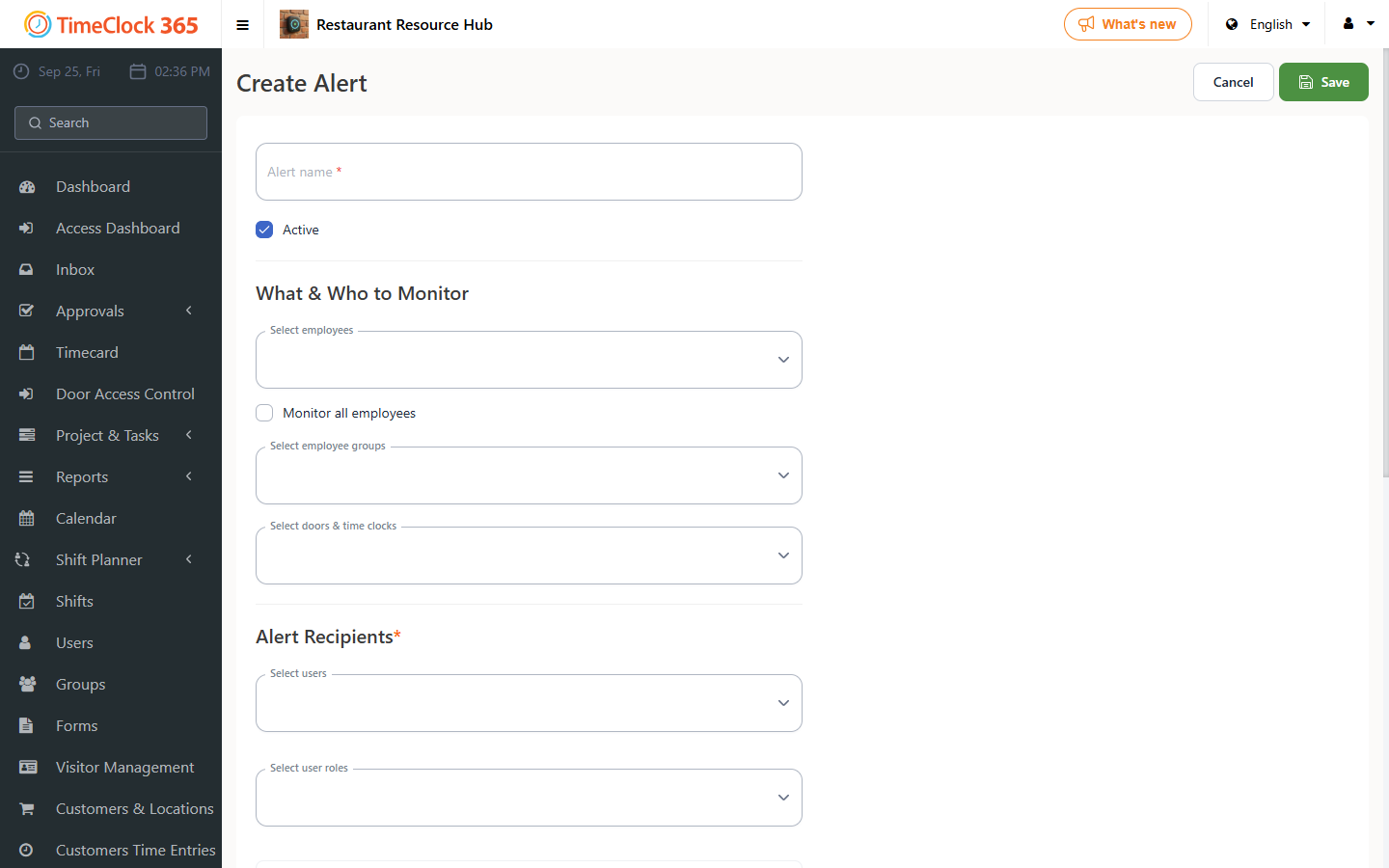
- Go to Alerts, then click "Create new alert".
- Give the alert a name, for example "Summaries for production manager".
- If you don't want to include all employees in this report, uncheck the "Receive alerts for all users" box and select the employees you want to include.
- Select the manager who should receive the summary by email - you can select one or several managers.
- Under "Weekly summary", check "Send weekly summary", choose whether it covers the current or previous week, choose the day and time you want the report to arrive by email, and save.
The weekly summary gives a general overview of the week, including total hours, absences and missing punches. In the "Weekly summary" tab you can check one or more of these options:
- Summary notification - the general weekly report.
- Overtime summary - a report focused on overtime hours accrued by each selected employee.
- Weekly hours overreach - notifies you when an employee works more than their standard weekly hours. Enter the threshold in the "Hours per week" field.