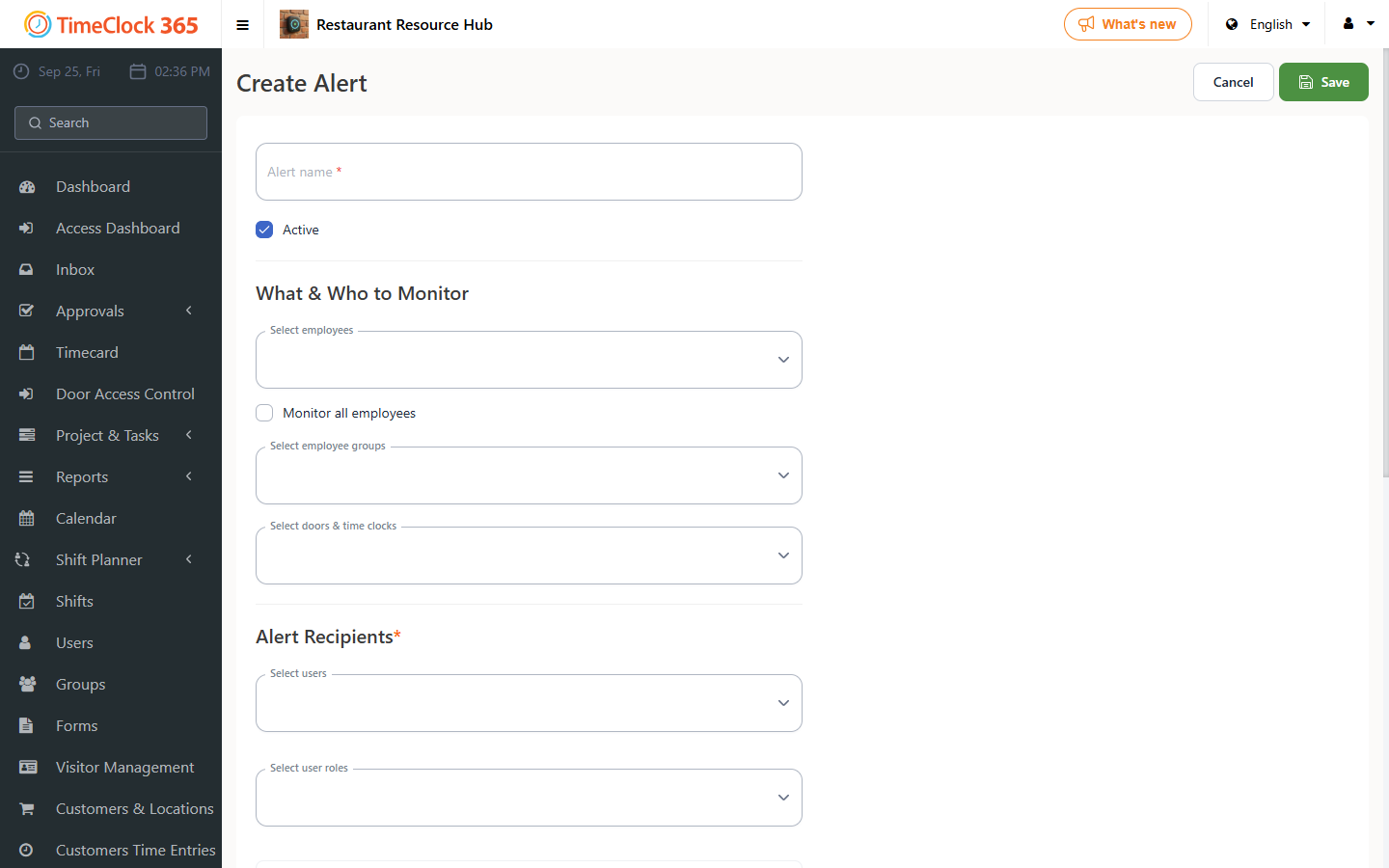
This guide explains how to set up an automatic email alert, sent on a fixed date each month at a fixed time, to managers, listing employees who exceeded a defined amount of overtime hours.
- Go to the Alerts screen and click "Create New Alert".
- In the alert settings screen, enter a name for the alert (for internal use) and define which employees the alert applies to. It's recommended to check the "Receive alerts for all users" checkbox - this means that whenever any employee in the company exceeds the hours you defined, the alert will be sent to the managers set in the next step.
- In the next field, define which managers will receive the alert about all employees; you can select more than one manager.
- Under "Weekly Summary", check the following settings (this means the email will be sent once a week, on Sunday, at 10:00, listing all employees who exceeded their weekly required hours, as defined in their contract, by more than 2 hours in the previous week).
- When done, click Save.