
This guide explains how to set standard work hours for Jewish holiday eves and intermediate days (Chol HaMoed), plus Israeli Independence Day eve and Yom Kippur eve.
Holiday eves
Holiday eves include: Rosh Hashanah eve, Sukkot eve, Simchat Torah eve, Passover eve, Pesach Sheni eve, and Shavuot eve.
If your company works on these holiday eves, you need to set the standard hours for employees for "Holiday Eve" in the contract.
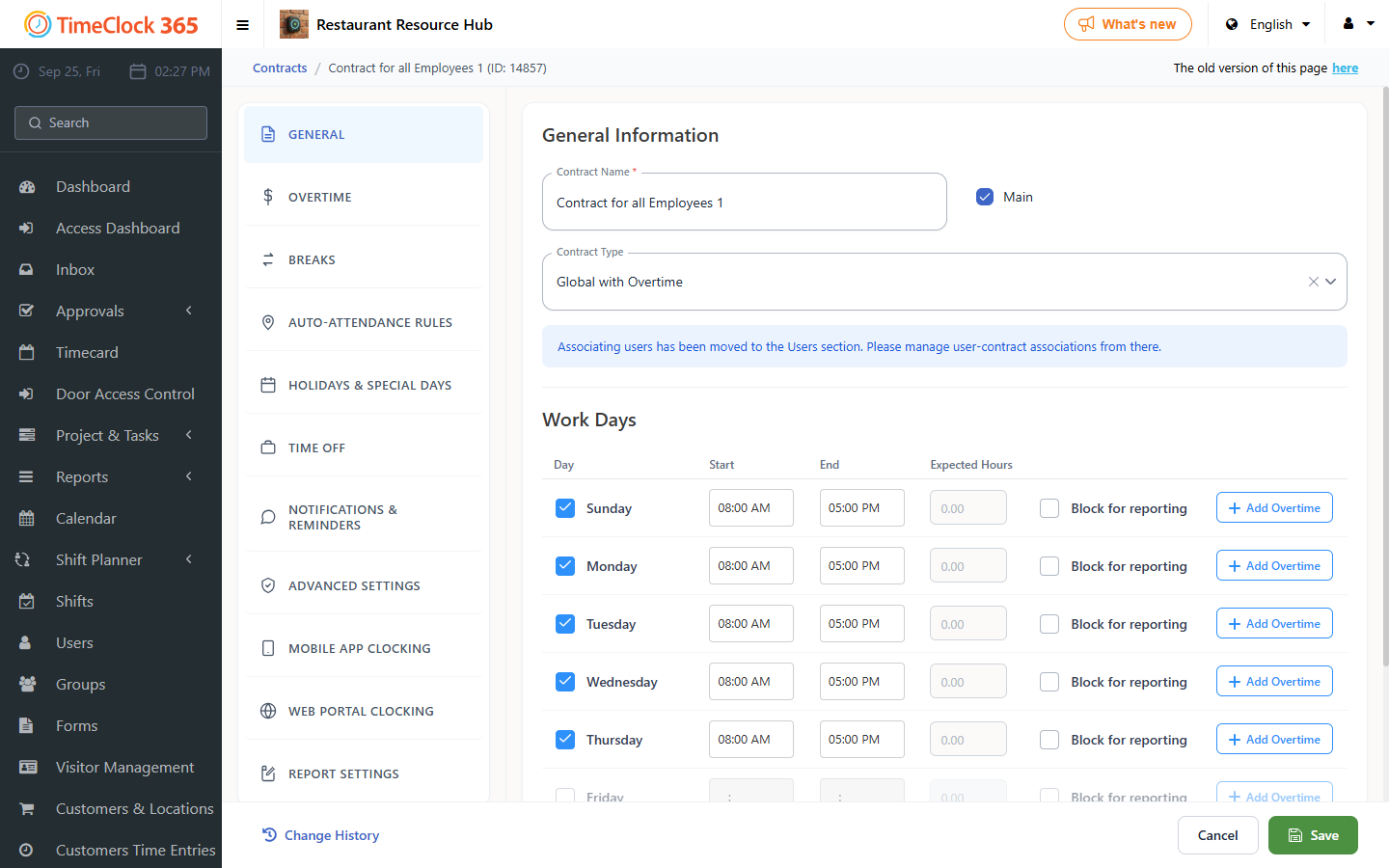
- Go to Settings -> Contract, choose the relevant contract, and open the "Holiday Eve" tab.
- Set the standard hours, and below it set how an absence is calculated on that day: full day, half day, or a specific number of hours.
- Click Save.
The standard hours will then appear in the Detailed Attendance report on the day the holiday eve falls.
Independence Day eve
If your company works on Independence Day eve, you need to set the standard hours for employees for "Independence Day Eve" in the contract.
- Go to Settings -> Contract, choose the relevant contract, and open the "Independence Day Eve" tab.
- Set the standard hours, and below it set how an absence is calculated on that day: full day, half day, or a specific number of hours.
- Click Save.
The standard hours will then appear in the Detailed Attendance report on the day Independence Day eve falls.
Yom Kippur eve
If your company works on Yom Kippur eve, you need to set the standard hours for employees for "Yom Kippur Eve" in the contract.
- Go to Settings -> Contract, choose the relevant contract, and open the "Yom Kippur Eve" tab.
- Set the standard hours, and below it set how an absence is calculated on that day: full day, half day, or a specific number of hours.
- Click Save.
The standard hours will then appear in the Detailed Attendance report on the day Yom Kippur eve falls.
Chol HaMoed (intermediate days)
If your company works during Chol HaMoed, you need to set the standard hours for employees for "Chol HaMoed" in the contract.
- Go to Settings -> Contract, choose the relevant contract, and open the "Chol HaMoed" tab. You can choose "Regular Work Hours" if the hours match the normal standard, or otherwise set the standard hours.
- Enter the start time and end time, and below it set how an absence is calculated on that day: full day, half day, or a specific number of hours.
- Click Save.
The standard hours will then appear in the Detailed Attendance report on days that fall within Chol HaMoed.
Related: how to report an absence on a holiday eve.