
The clock's Data Mgt. menu lets you back up the data stored on the clock, restore it, or delete it.
This guide is for TimeClock 365 biometric clocks with a 2.8, 3 or 3.5-inch color screen. Menu names can differ slightly between models and firmware versions.
Important: deleting can't be undone. Before deleting attendance data, make sure every punch has synced to TimeClock 365 - see How to Check Clock / Controller Sync Status - or download a copy first: Download Attendance Data to a USB Drive.
Back up data
- Press M/OK, select Data Mgt. and press OK.
- Select Backup Data, then Backup to Device or Backup to USB Disk, and press OK.
- Choose the Backup Content (business data and/or system data), add notes if you like, then select Backup start.
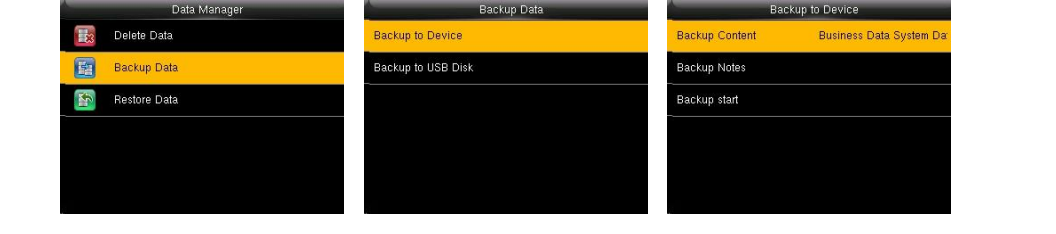
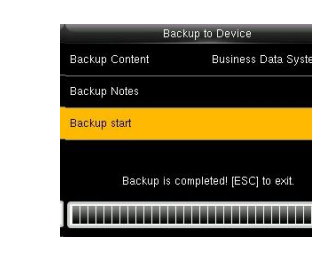
For a USB backup, use a USB 2.0 drive of up to 8 GB formatted in FAT32.
Restore data
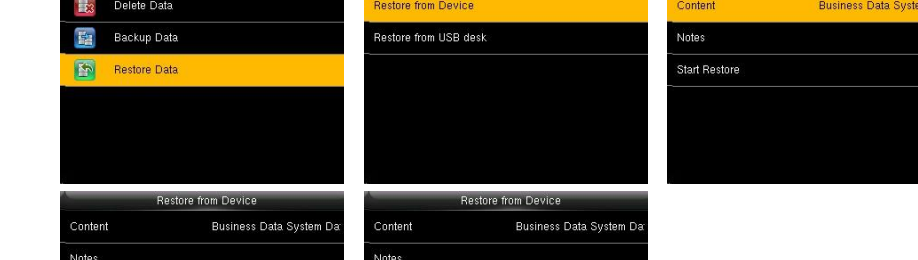
- In Data Mgt., select Restore Data, then Restore from Device or Restore from USB Disk.
- Choose the content, select Start Restore and confirm with Yes.
Delete data
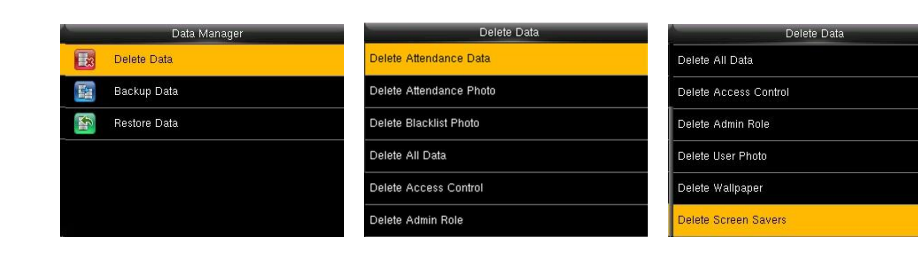
- In Data Mgt., select Delete Data and press OK.
- Choose what to delete and confirm:
- Delete Attendance Data - all attendance records on the clock.
- Delete Attendance Photo / Delete Blacklist Photo - saved photos.
- Delete All Data - all users, fingerprints, faces and attendance records.
- Delete Access Control - all access control records.
- Delete Admin Role - turns all administrators into normal users.
- Delete User Photo, Delete Wallpaper, Delete Screen Savers.
FAQ
Can I back up the clock's data?
Yes. In Data Mgt. > Backup Data you can back up to the device or to a USB drive, then restore it later from Data Mgt. > Restore Data.
Is it safe to delete attendance data on the clock?
Only if all punches have already synced to TimeClock 365. Punches that haven't synced are lost when deleted. Check the clock's sync status first.
Need help? Open a support ticket.