
The clock has its own roles that decide who can open its menu. This is separate from the roles and permissions in the TimeClock 365 web portal.
This guide is for TimeClock 365 biometric clocks with a 2.8, 3 or 3.5-inch color screen. Menu names can differ slightly between models and firmware versions.
The roles
- Super Admin - can open every menu on the clock.
- Normal User - can only verify (clock in and out) with fingerprint, card or password. If the clock has no administrator at all, any user can open the menu.
- User Defined Role - a custom role with access to the menus you choose, on top of what a normal user can do.
Tip: make sure at least one manager is a Super Admin, so employees can't change the clock's settings. Set a user's role when you enroll or edit them - see How to Find, Edit or Delete a User on the Clock.
Create a custom role
- Press M/OK, press ► to select User Role and press OK.
- Select User Defined Role 1 (or 2, 3) and press OK.
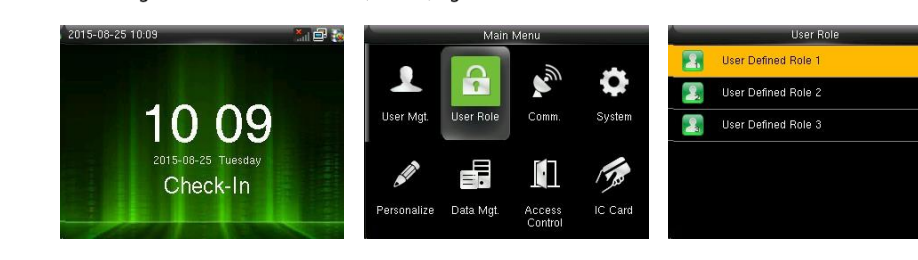
- Turn on Enable Defined Role.
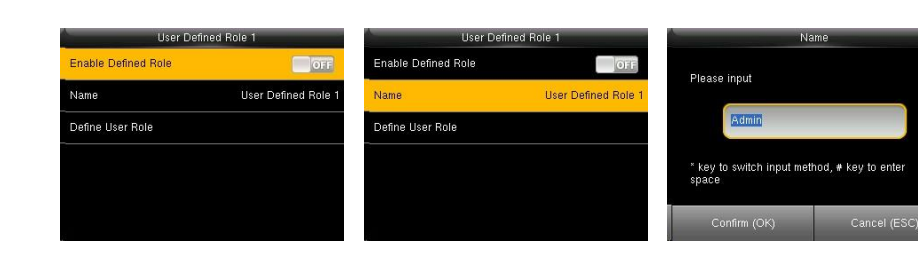
- Select Name, press * to switch the input method, type a name and press OK.
- Select Define User Role, then press ▼ and OK to tick the menus this role can open (for example Users, Access Control, IC Card, COMM. Settings, System, Personalize).
- Press ESC to exit.
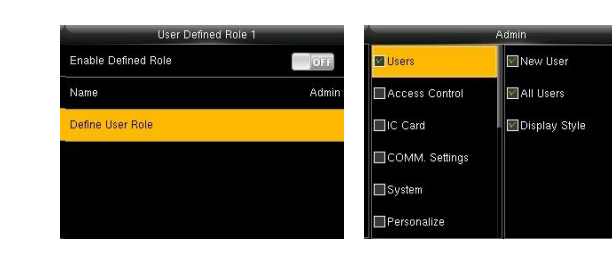
Then assign the role to a user in their user details on the clock.
FAQ
How do I stop employees from opening the clock menu?
Give at least one person the Super Admin role on the clock. Once the clock has an administrator, normal users can only clock in and out and can't open the menu.
Can I give someone access to only part of the menu?
Yes. Create a User Defined Role in the User Role menu, choose which menus it can open, and assign it to that person.
Need help? Open a support ticket.