
With a lot of employees enrolled, the quickest way to get to one of them on the clock is to search by user ID or name. From there you can edit their fingerprint, card or password, or delete them from the device.
This guide is for TimeClock 365 biometric clocks with a 2.8, 3 or 3.5-inch color screen. Menu names can differ slightly between models and firmware versions.
Find a user
- Press M/OK, select User Mgt. and press OK.
- Press ▼ to select All Users and press OK.
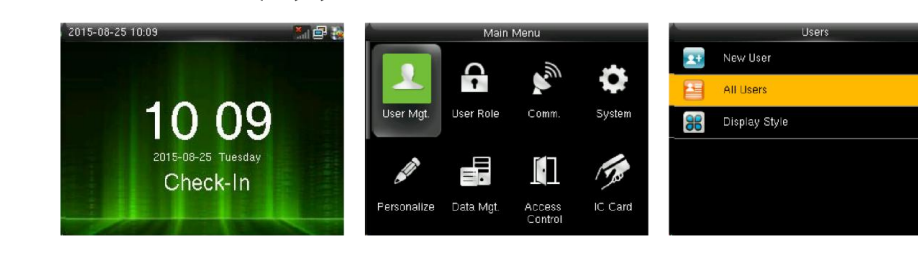
- Type the user ID on the keypad - the cursor jumps to that user. To search by name, press # to switch the input method and type the name with the letter keys.
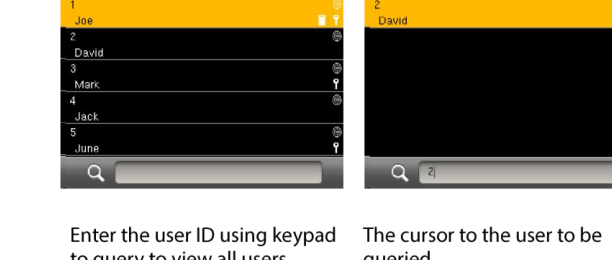
Edit a user
- Select the user and press OK, then choose Edit.
- Change the name, role, fingerprint, badge (card) or password, the same way as when enrolling. The User ID can't be changed.
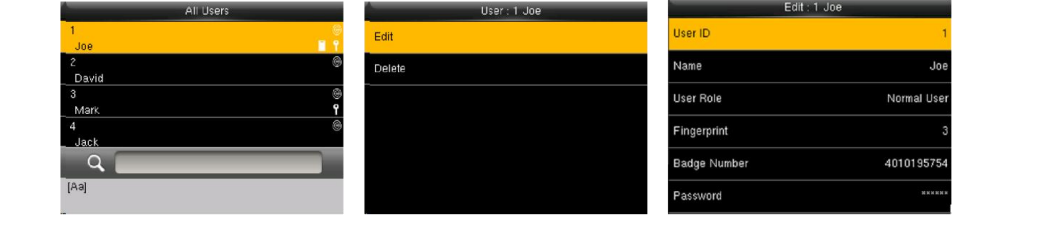
Step-by-step enrollment: How to Enroll Fingerprint or Card on the Biometric Terminal.
Delete a user or only part of their data
- Select the user, press OK and choose Delete.
- Choose what to delete: Delete User (everything), Delete Fingerprint Only, Delete Password Only or Delete Badge Number Only, and press OK.
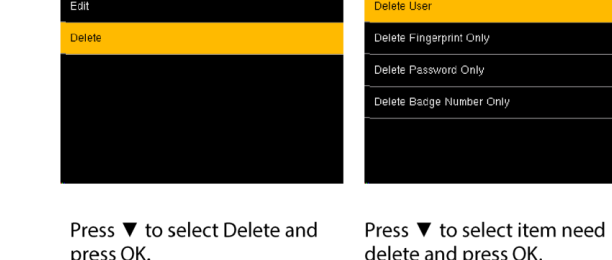
Note: deleting on the clock only affects this device. To remove an employee from TimeClock 365, do it in the web portal - see How to Add a New Employee or Remove an Existing One.
FAQ
How do I find an employee on the biometric clock?
Press M/OK, select User Mgt., then All Users. Type the user ID, or press # to switch to letters and search by name.
Does deleting a user on the clock remove them from TimeClock 365?
No. Deleting on the clock only removes the user from that device. To remove an employee from your TimeClock 365 account, do it in the web portal.
Need help? Open a support ticket.