
This guide explains how to export the employee list to Excel, including the details stored for each employee in the system.
- Go to Users.
- If needed, use the active/inactive filter.
- Click Search to update the filter.
- Click the download icon, then click XLS.
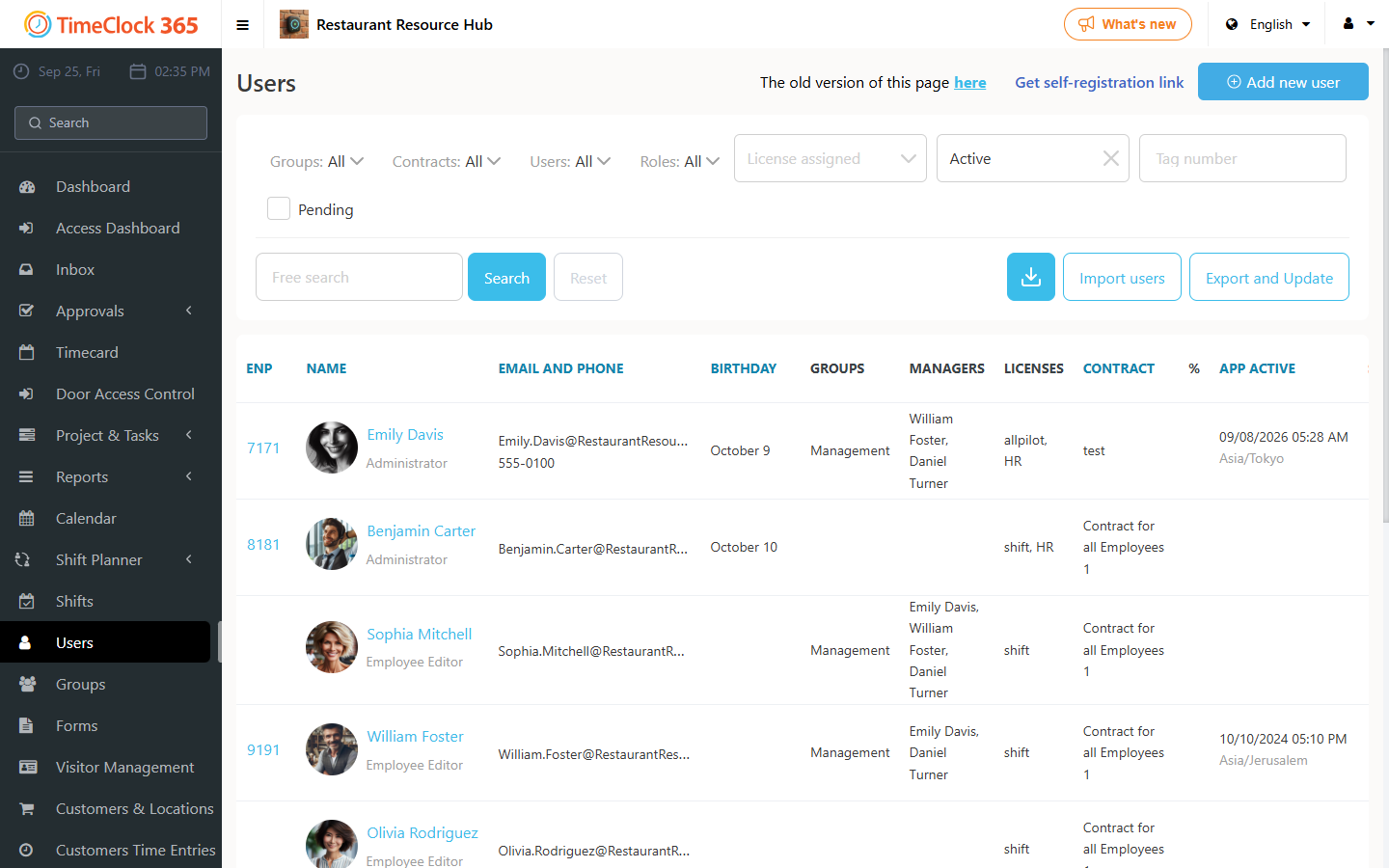
The downloaded file includes details such as: ID number, employee name, license, work agreement, email, groups, and role.
The file also includes phone number and status (active or inactive).
Exporting for bulk updates (CSV)
To edit many employees at once, go to Users and click "Export and Update". A CSV file named users_[date]_[time].csv is downloaded with all your users and their profile data. Edit it and upload it back. See Updating Existing Users via CSV File.
The CSV includes: ID (do not change), first and last name, email and mobile phone, employee number for payroll, address and city, gender and date of birth, work start date, tag number, hourly rate (optional), and group, license and role IDs (change these with caution).