
This guide shows how to let employees punch in and out from the TimeClock 365 mobile app only when they are at a specific address, using a GPS geofence around the location.
Before you start: employees must allow location access for the TimeClock 365 app and have GPS turned on when they punch in.
Step 1 - Add the location
- In the menu, click Customers & Locations, then Add new customer.
- In Customer's company name, enter a name for the location (for example "Main Office").
- In the Address field on the map, type the address and choose it from the Google suggestions.
- In Radius (meters), set how far from the address employees can punch in. 50-200 meters works well for an office.
- Click Save.
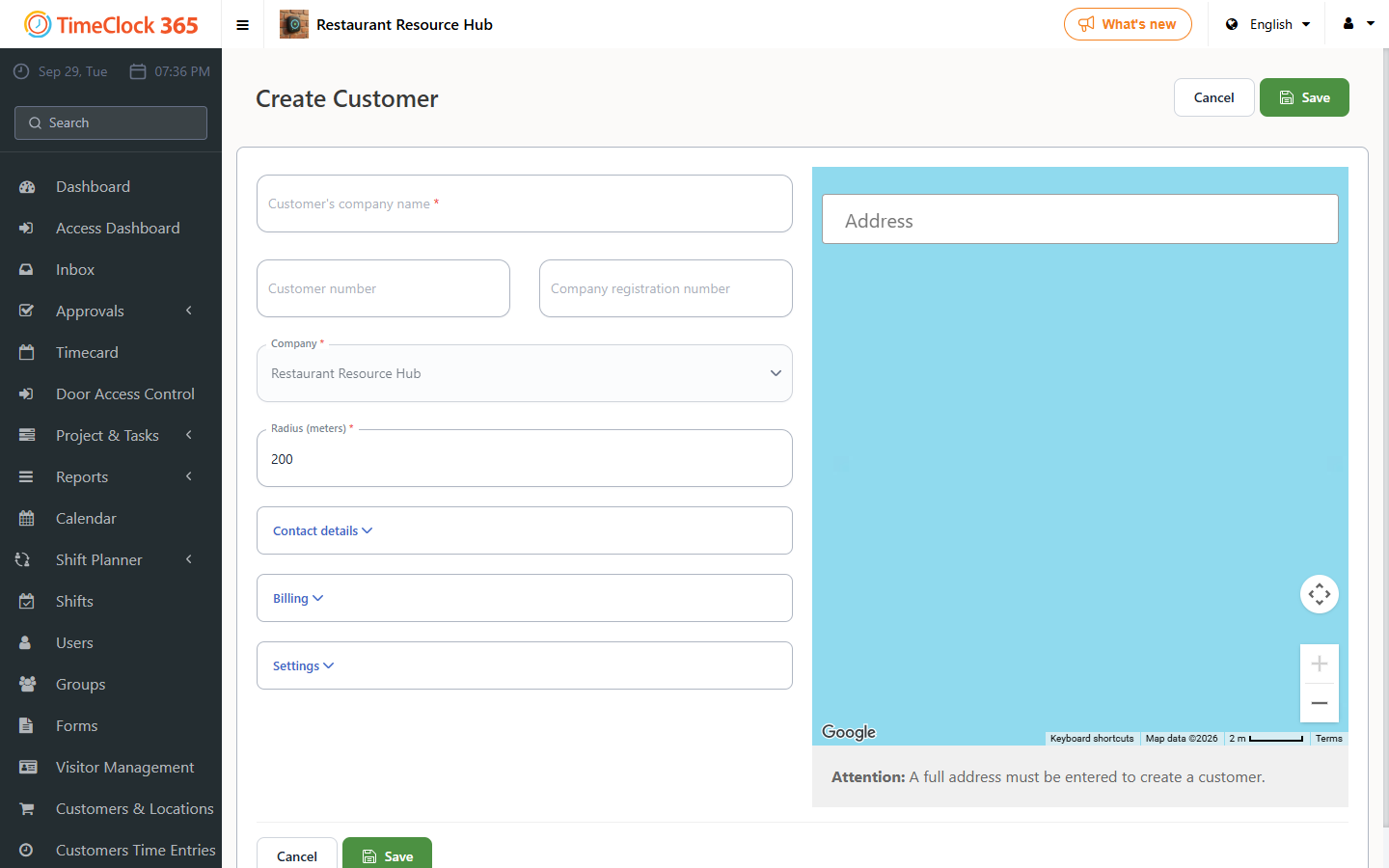
Tip: if the site has no street address, click the spot on Google Maps, copy its coordinates, and paste them into the Address field.
Step 2 - Restrict the contract to that location
- Go to Contracts and open the employees' contract.
- Open the Mobile app clocking tab.
- Under Location Settings, check Require GPS Location for Punch In/Out.
- Under Geofencing Rule, choose Allow to punch only on the following locations and select the location you created.
- Click Save.
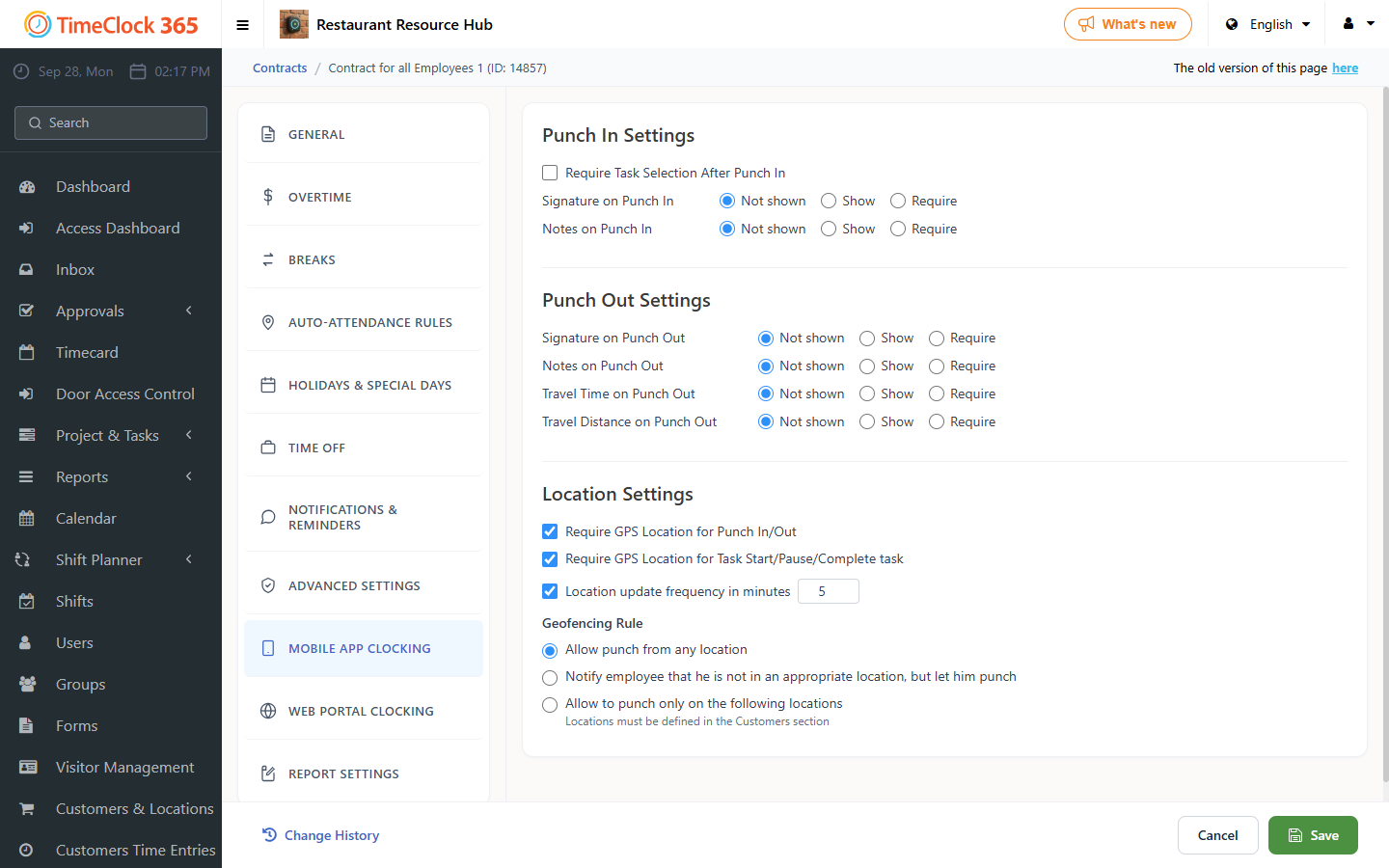
Employees on this contract now get an error in the app if they try to punch in outside the radius.
If you don't want to block employees, choose Notify employee that he is not in an appropriate location, but let him punch instead. If you report to the Israel Innovation Authority, this option is recommended.
Web portal punches
The GPS restriction applies to the mobile app. To limit punches from the web portal, restrict them to your office IP address instead. See How to Restrict Web Punch-In to the Office IP Address.
Need help? Open a support ticket.