
This guide shows how to let employees punch in from the web portal only when they are on the office network, using your company's IP address.
Note: your office needs a static IP address for this to work.
Step 1 - Add the office IP address
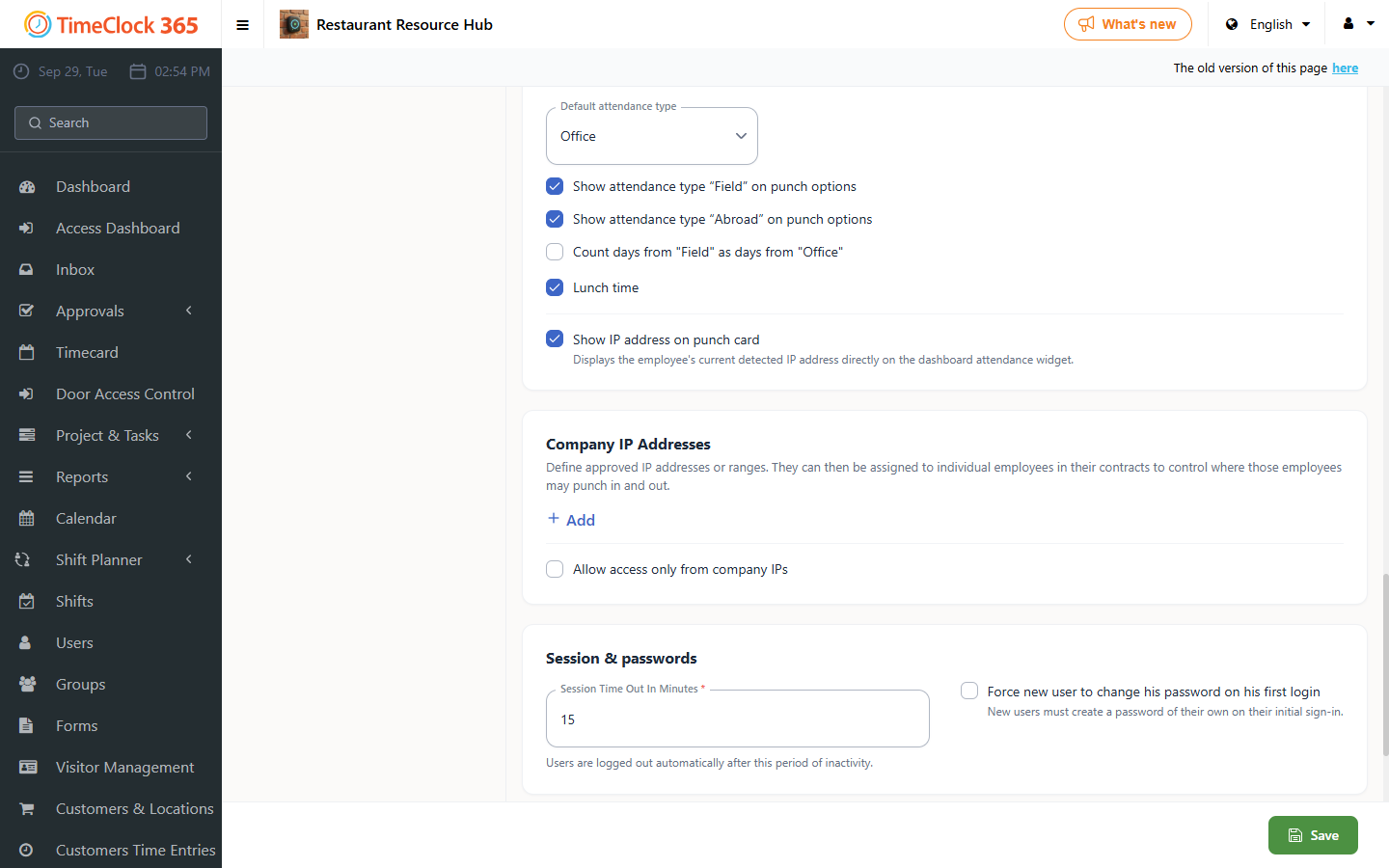
- Go to Settings → Company Profile.
- Scroll to Company IP Addresses and click + Add.
- Enter a name (for example "Office") and the IP address. To allow more than one address, click + Add again.
- Click Save.
Step 2 - Restrict web punching in the contract
- Go to Settings → Contracts and open the employees' contract.
- Open the Web portal clocking tab.
- Check Restrict web punching by IP address and select the allowed IP addresses.
- Click Save.
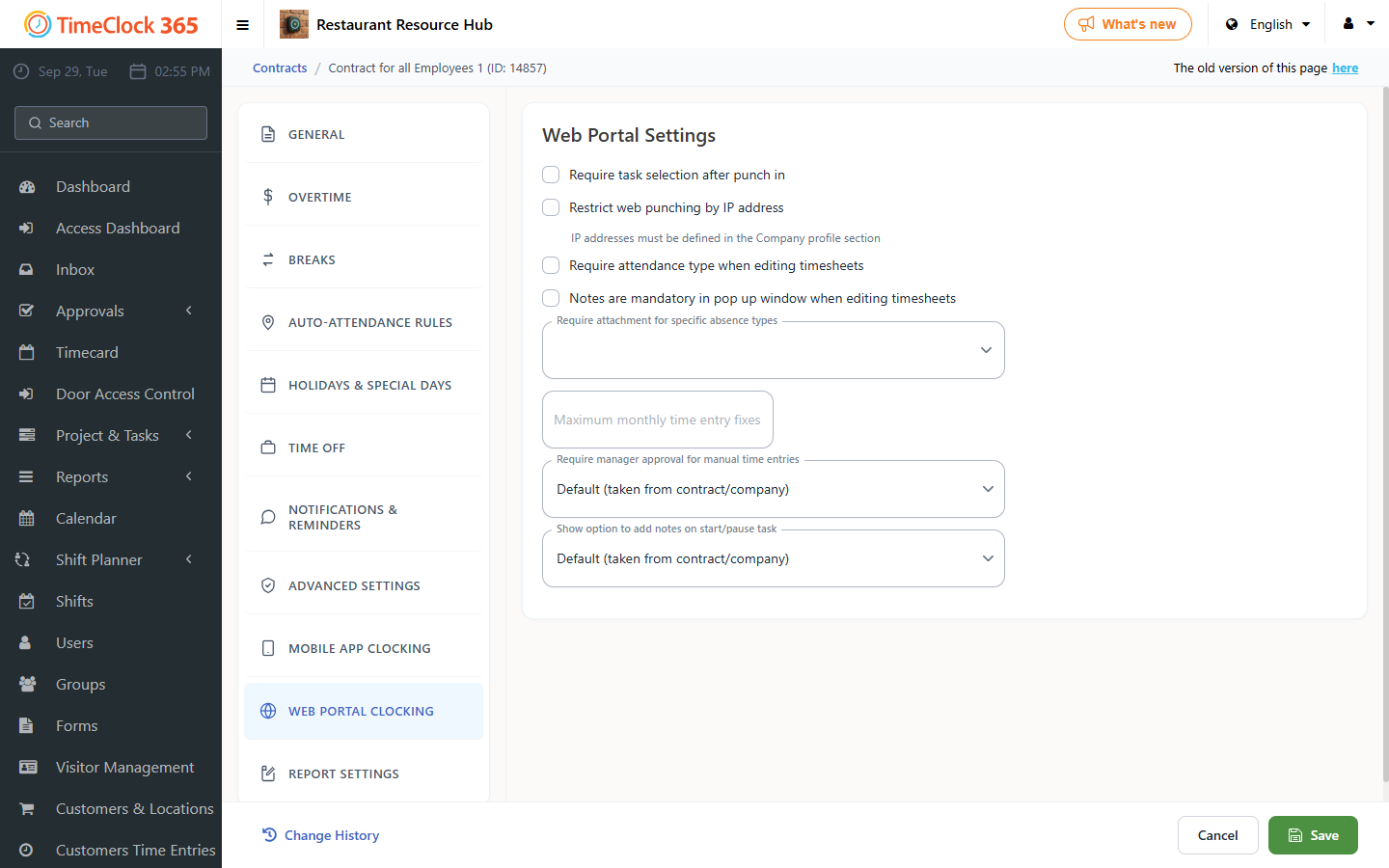
Employees on this contract can now punch in and out from the web portal only from the office IP addresses.
To restrict mobile app punches to a specific address instead, see How to Restrict Mobile Punch-In to a Specific Location (GPS Geofence).
Need help? Open a support ticket.