
This guide explains how to re-upload (push) an employee to a biometric clock or door controller when the employee isn't appearing on the device.
Before you start: an employee must have a license assigned before they can be linked to a clock/controller, or to a group that's linked to one.
Step 1: Check that the clock/controller is synced
If the employee didn't appear on the device, first confirm the clock or controller is connected and syncing - see How to Check Clock / Controller Sync Status.
Step 2: Open the employee's user card
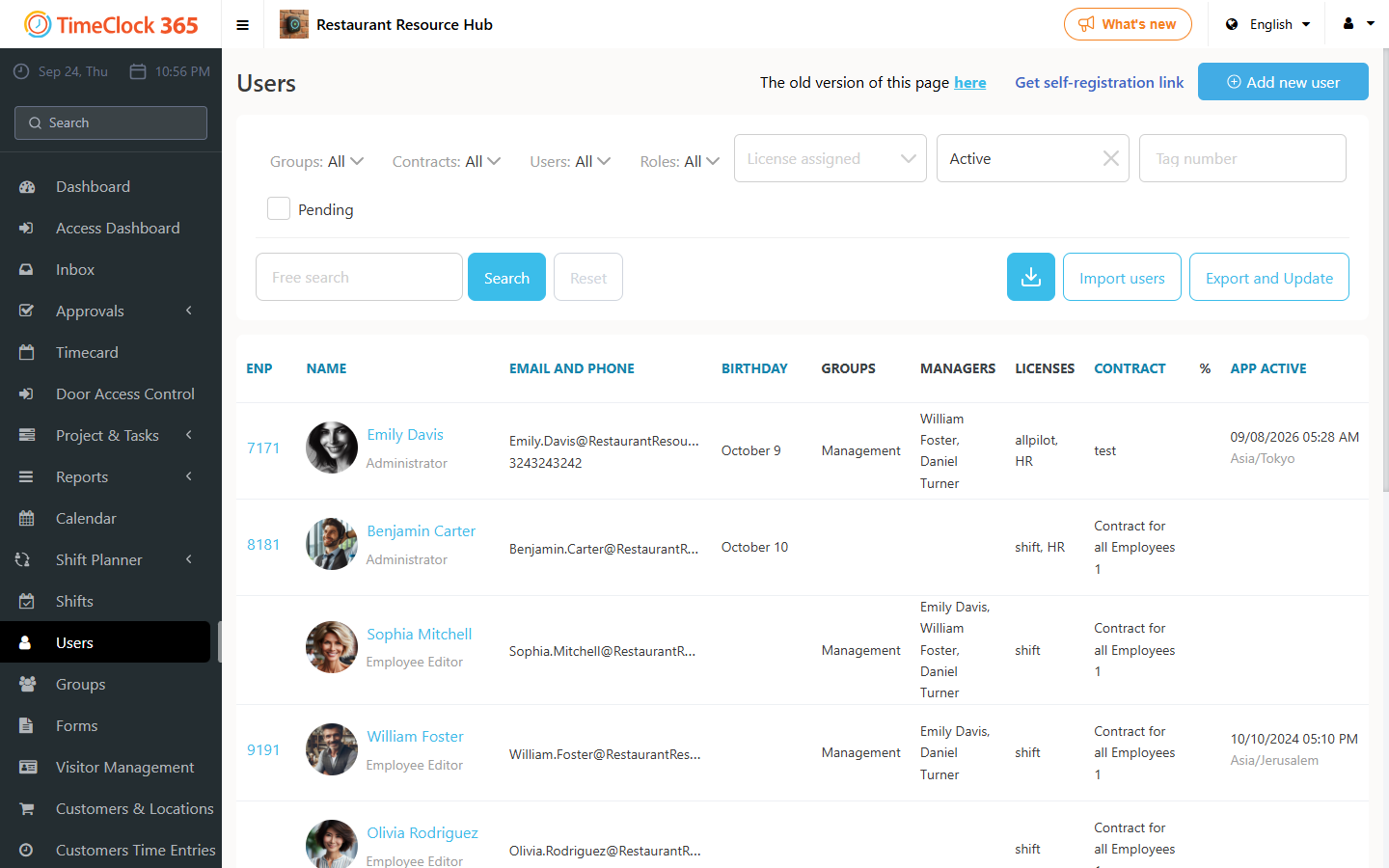
Go to Users in the left menu and click the employee's name.
Step 3: Re-upload the employee to the device
- In the user card, open the Terminals tab. It lists the clocks and controllers the employee is linked to.
- Find the relevant clock/controller and open its settings for this employee.
- Tick Re-upload, then click Save.
Step 4: Confirm
Wait about a minute, then check the device to confirm the employee now appears. If they still don't, open a support ticket and include the device's serial number.