
In your TimeClock 365 demo account, click "Choose What to Try in Your Demo" at the top left, switch on the plans and add-ons you want in the Demo Setup window, and click Save changes. The modules then appear in your demo. It is free during the demo, and you can add or remove modules at any time.
How to switch on plans and add-ons
- In your demo account, click "Choose What to Try in Your Demo" at the top left, above the menu.
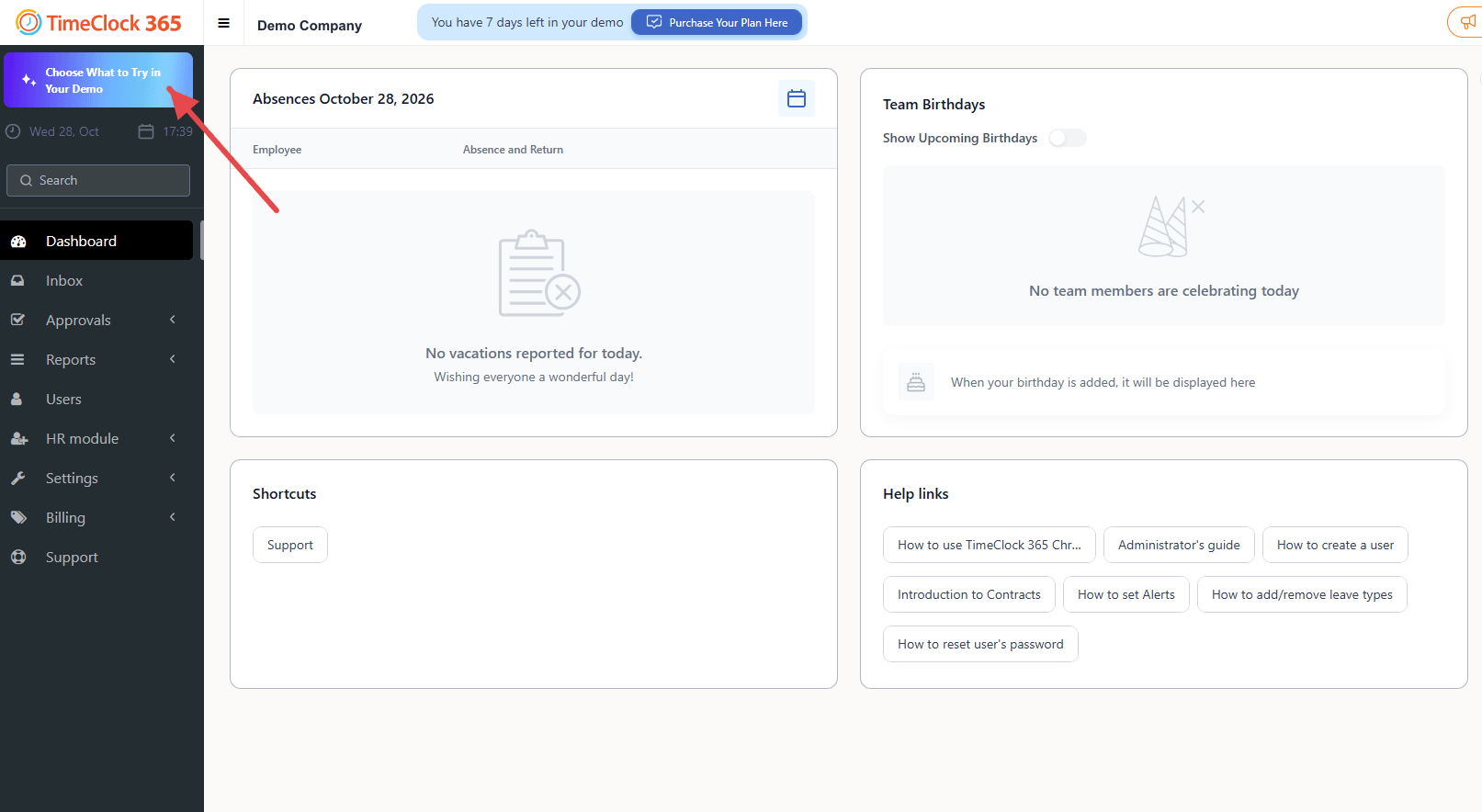
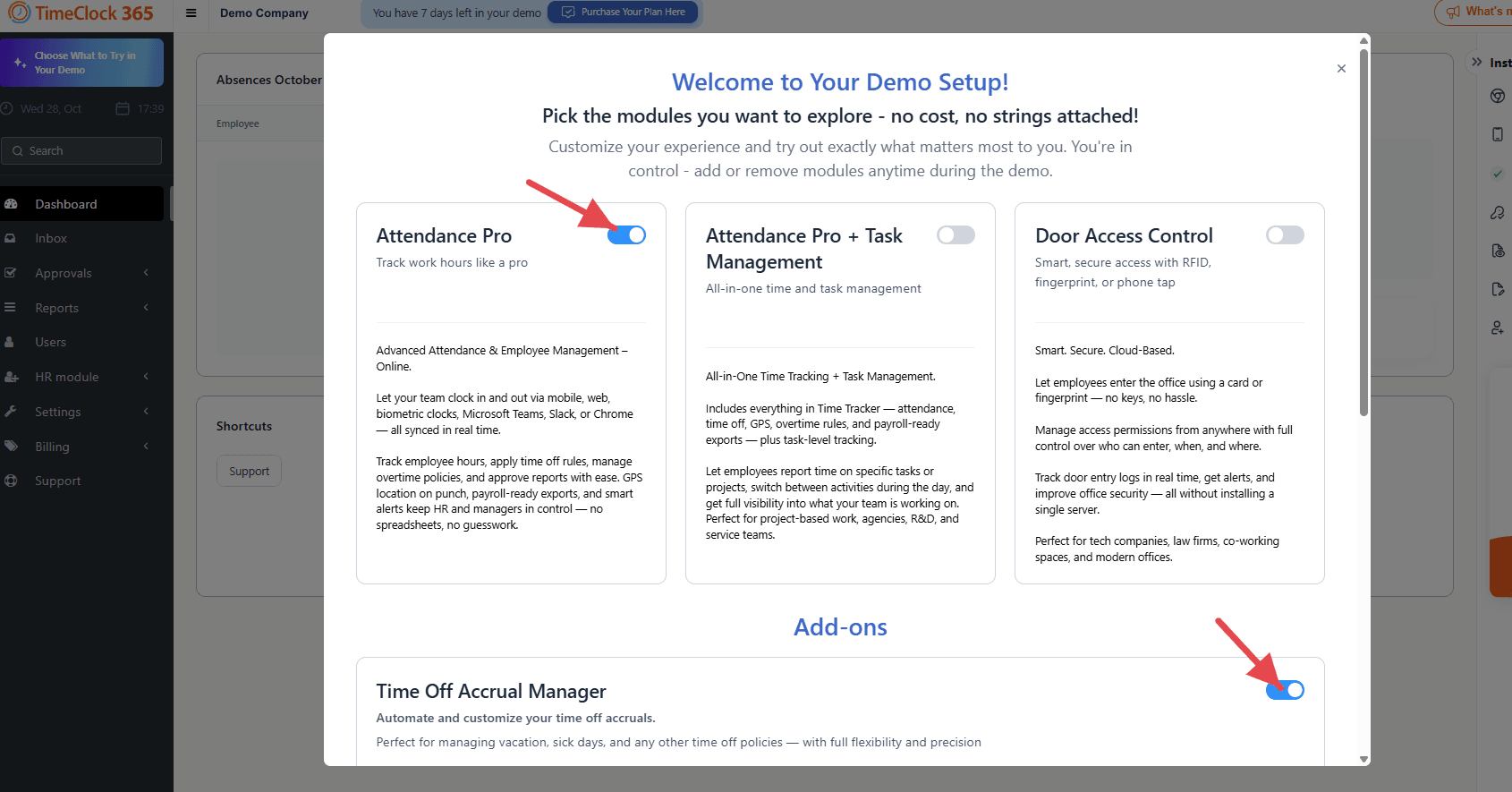
- The "Welcome to Your Demo Setup!" window opens. Switch ON the toggle of each plan you want to try: Attendance Pro, Attendance Pro + Task Management or Door Access Control.
- Under Add-ons, switch ON any add-on you want - for example Time Off Accrual Manager ("Automate and customize your time off accruals").
- Scroll down and click Save changes.
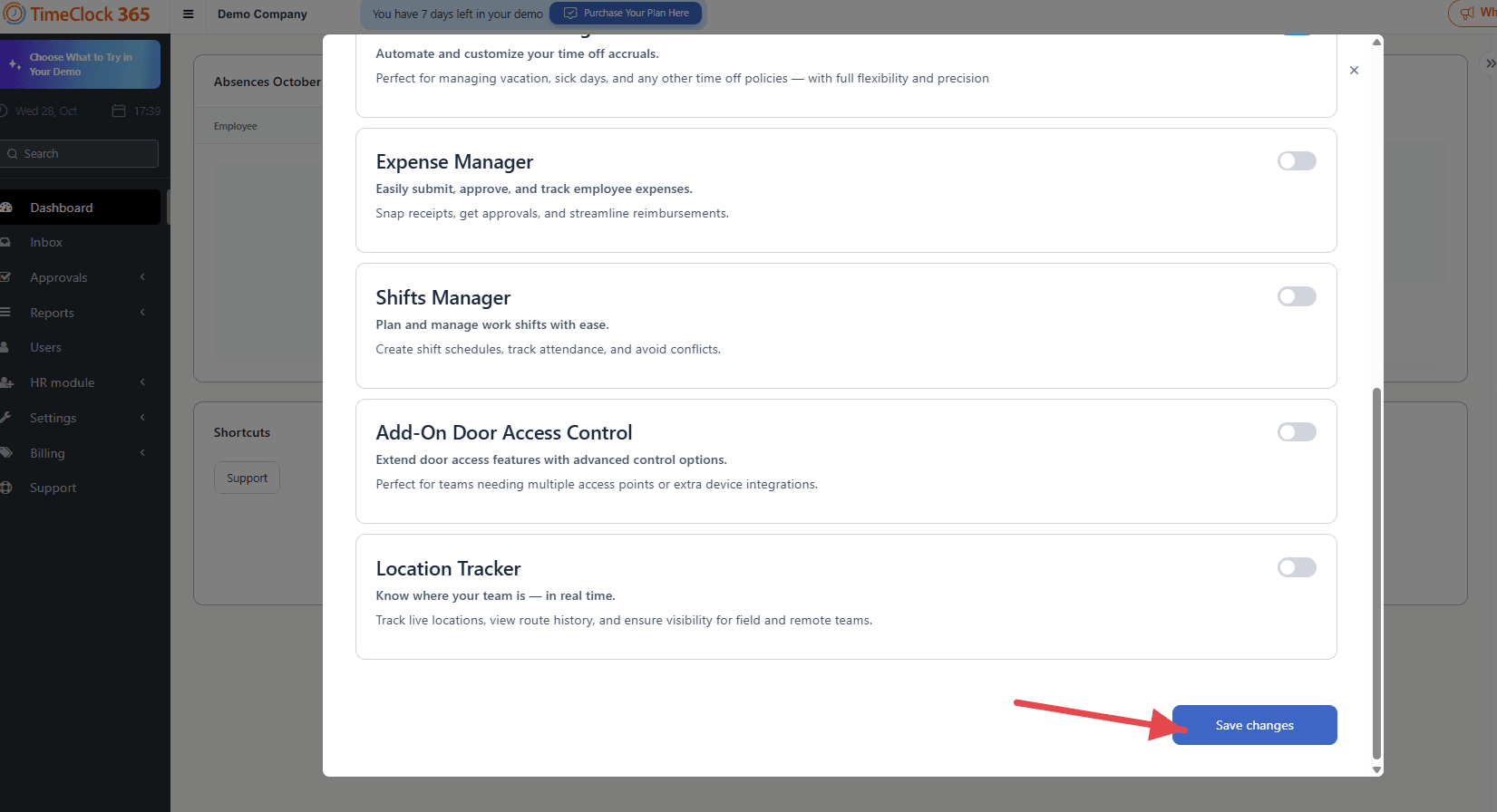
The plans and add-ons you switched on now appear in your demo account.
What each plan includes
Attendance Pro
Track work hours like a pro. Employees clock in and out via mobile, web, biometric clocks, Microsoft Teams, Slack or Chrome, all synced in real time. Apply time off rules, manage overtime policies and approve reports, with GPS location on punch, payroll-ready exports and smart alerts for HR and managers.
Attendance Pro + Task Management
All-in-one time and task management. Includes attendance, time off, GPS, overtime rules and payroll-ready exports, plus task-level tracking: employees report time on specific tasks or projects and switch between activities during the day, so you see what your team is working on.
Door Access Control
Smart, secure access with RFID, fingerprint or phone tap. Employees enter the office with a card or fingerprint. Manage access permissions from anywhere, and track door entry logs in real time with alerts - without installing a server.
Add-ons you can try
- Time Off Accrual Manager - automate and customize your time off accruals.
- Expense Manager - easily submit, approve and track employee expenses.
- Shifts Manager - plan and manage work shifts with ease.
- Add-On Door Access Control - extend door access features with advanced control options.
- Location Tracker - know where your team is, in real time.
Free during the demo
Trying plans and add-ons costs nothing during the demo. You are in control: click "Choose What to Try in Your Demo" again any time to switch modules on or off, then click Save changes.
The banner at the top of the screen shows how many days are left in your demo. When you are ready to buy, click Purchase Your Plan Here in that banner.
FAQ
Does it cost anything to try plans and add-ons in the TimeClock 365 demo?
No. Switching on plans and add-ons in the Demo Setup window of your TimeClock 365 demo account is free during the demo. There is no cost and no commitment.
Can I remove a plan or add-on from my TimeClock 365 demo?
Yes. Click "Choose What to Try in Your Demo" to open the Demo Setup window again, switch the plan or add-on off and click Save changes. You can add or remove modules any time during the demo.
Which plans and add-ons can I try in the TimeClock 365 demo?
The Demo Setup window lists three plans: Attendance Pro, Attendance Pro + Task Management and Door Access Control. The add-ons are Time Off Accrual Manager, Expense Manager, Shifts Manager, Add-On Door Access Control and Location Tracker.
What happens after the TimeClock 365 demo ends?
The banner at the top of your TimeClock 365 demo shows how many days are left. To keep using TimeClock 365, click "Purchase Your Plan Here" in that banner. You can also compare plans on the pricing page at timeclock365.com/pricing/ or book a demo with the team at timeclock365.com/book-demo/.