
Each punch on the clock has a state, such as Check-In, Check-Out, Break Out or Overtime In. The state comes from the clock's status keys. This guide shows how to choose between manual and automatic switching, and how the keys are mapped.
This guide is for TimeClock 365 biometric clocks with a 2.8, 3 or 3.5-inch color screen. Menu names can differ slightly between models and firmware versions.
Punch State Options
- Press M/OK, select Personalize and press OK.
- Press ▼ to select Punch State Options and press OK.
- Press ▲/▼ and OK to set the options, then press OK to save and exit.
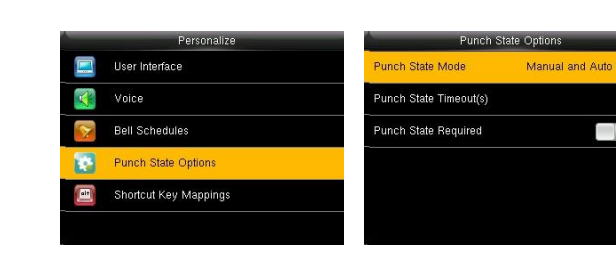
Punch State Mode:
- Off - status keys aren't used.
- Manual Mode - employees press a status key before punching. The selected state disappears after the timeout.
- Auto Mode - the clock switches the state automatically at the times you set.
- Manual and Auto Mode - the clock switches automatically, and employees can still change it manually. A manually selected state goes back to the automatic schedule after the timeout.
- Manual Fixed Mode - a selected state stays until someone changes it.
- Fixed Mode - one state is always shown and can't be switched.
Punch State Timeout(s) - how long a status stays on the main screen. Punch State Required - whether employees must select a state when punching.
Shortcut keys and automatic switch times
In Personalize > Shortcut Key Mappings, keys F1-F6 are mapped to states (for example F1 Check In, F2 Check Out, F3 Break Out, F4 Break In, F5 Overtime In, F6 Overtime Out). Select a key to change its state or name, and set its Switch Time for automatic switching.
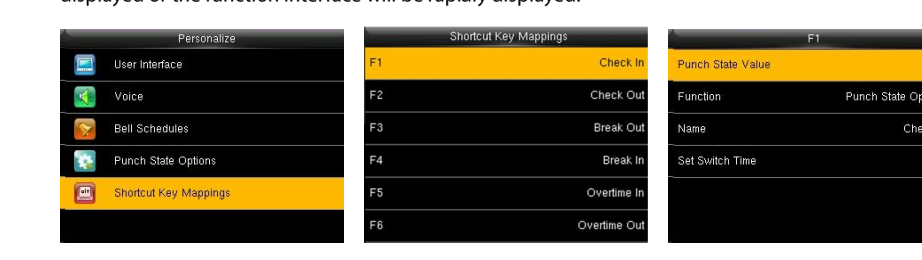
For step-by-step automatic switching by day, see Clock Status Change Time - Clock In / Clock Out and Auto Clock-In to Clock-Out Toggle on Biometric Terminal.
FAQ
How does the clock know if a punch is Check-In or Check-Out?
The punch state comes from the status keys (F1-F6). In Punch State Options you choose whether employees switch it manually, the clock switches it automatically at set times, or both.
Can the clock switch to Check-Out automatically in the afternoon?
Yes. Set the Punch State Mode to Auto or Manual and Auto, and set the switch time for each status key in Shortcut Key Mappings.
Need help? Open a support ticket.