
The "IP not allowed" error means web punching is restricted to approved IP addresses in the employee's contract, and the IP address of the network they are on now isn't on the list. To fix it, the employee connects from an approved network, or an administrator adds the current IP address or removes the restriction for that employee.
Why it happens
- The employee is not on the office network - for example at home, on mobile data, or in a café.
- The office IP address changed - the office has no static IP, or you switched internet provider or router.
- A VPN is on - the VPN changes the IP address TimeClock 365 sees.
- The employee should work remotely - but their contract still restricts web punching by IP address.
- The IP address was entered incorrectly in the company settings.
How to fix it (administrator)
A. Add or update the office IP address
- From a computer on the office network, search "what is my IP" and note the public IP address.
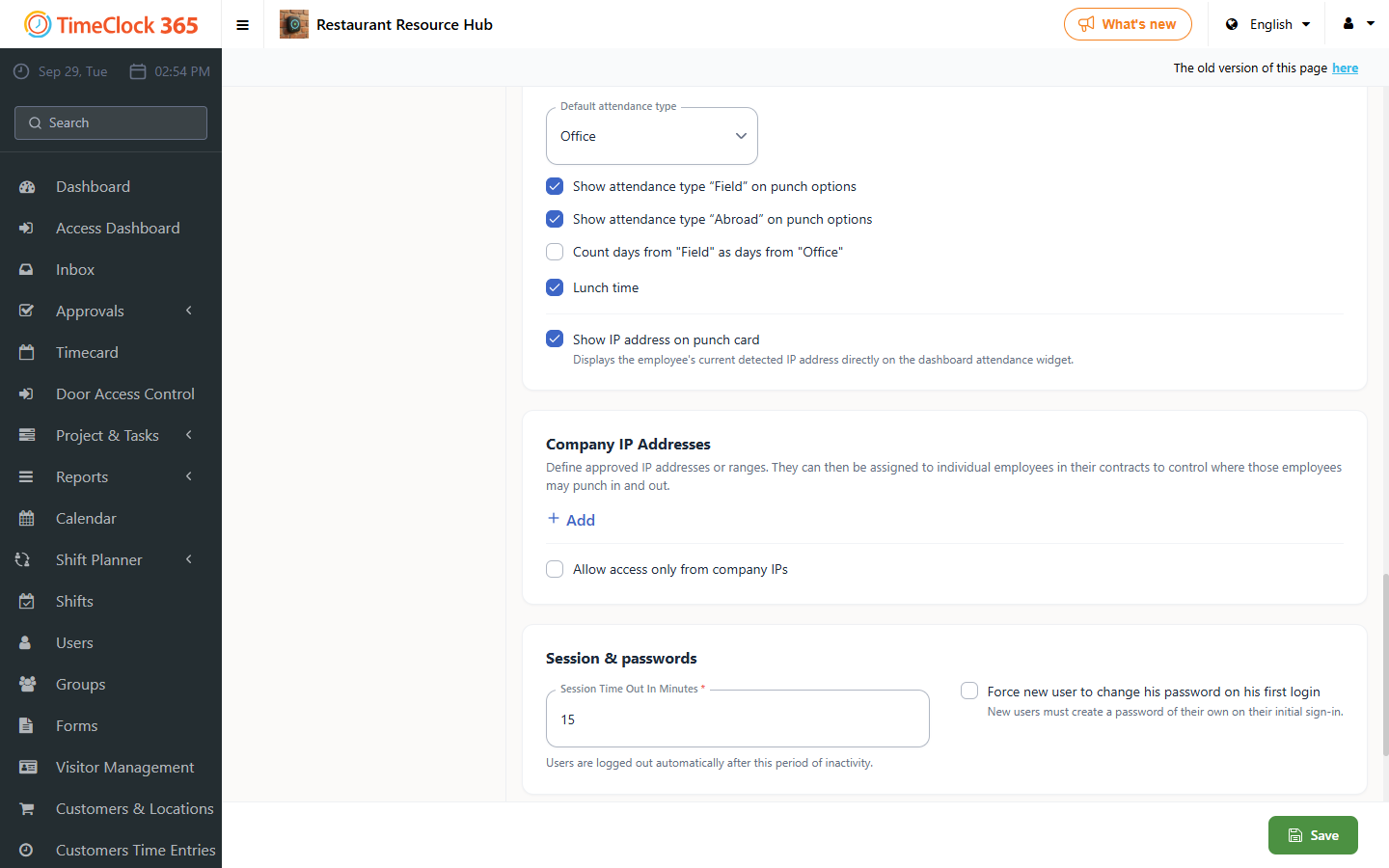
- In TimeClock 365, go to Settings → Company Profile.
- Scroll to Company IP Addresses. Click + Add to add the address, or edit the existing entry if the IP changed. Enter a name (for example "Office") and the IP address.
- Click Save.
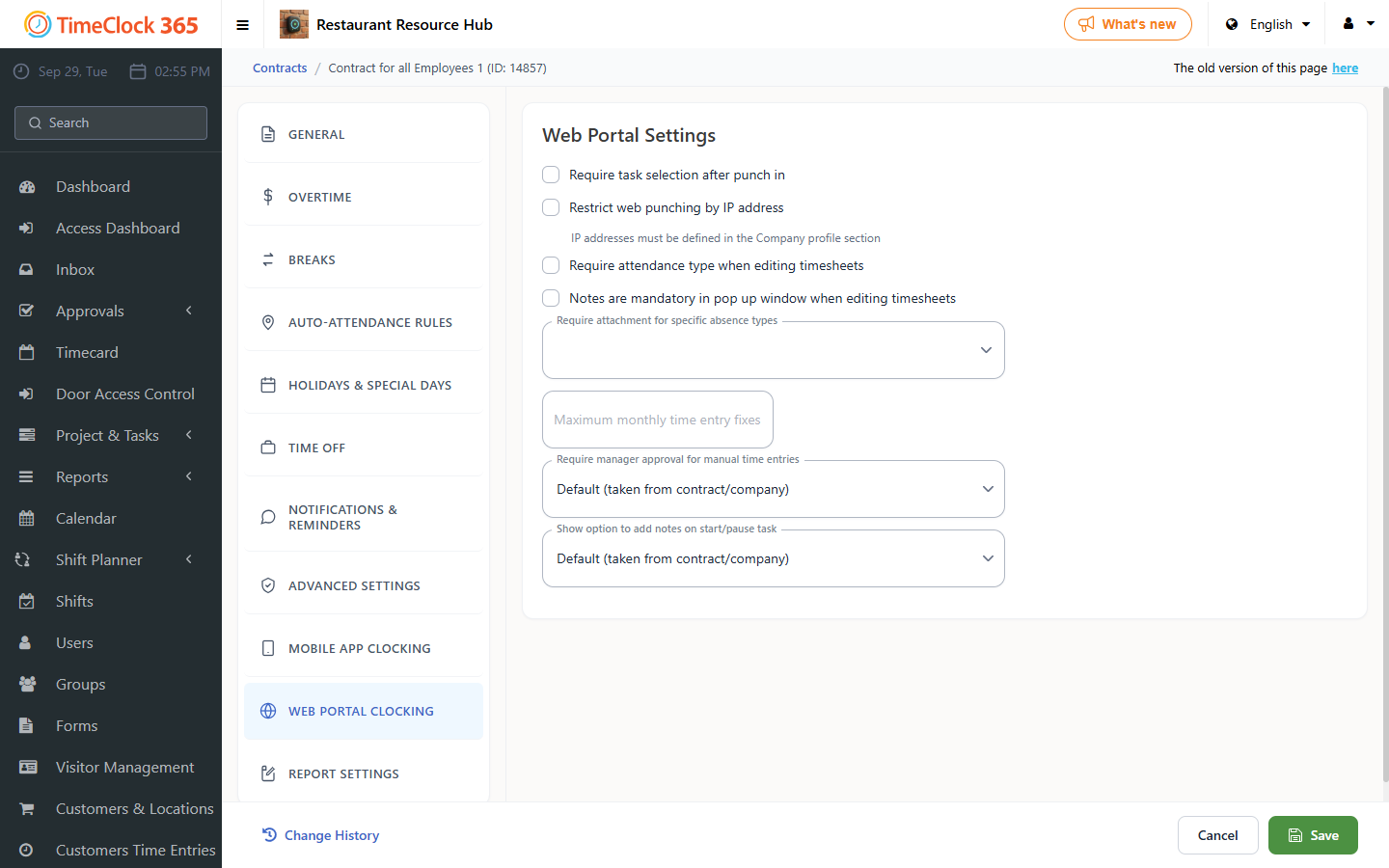
- Go to Settings → Contracts and open the employee's contract.
- Open the Web portal clocking tab and make sure the IP address is selected under Restrict web punching by IP address.
- Click Save.
Tip: if the office IP keeps changing, ask your internet provider for a static IP address. The IP restriction works reliably only with a static IP.
B. Allow remote web punching for the employee
If the employee should be able to punch in from outside the office:
- Move them to a contract that does not restrict web punching by IP address, or
- Go to Settings → Contracts, open their contract, open the Web portal clocking tab, uncheck Restrict web punching by IP address and click Save.
Note: unchecking the restriction affects everyone on that contract, not only this employee.
C. Employees who use a VPN
Find the VPN's exit IP address (search "what is my IP" while connected to the VPN, or ask your IT team). Add it under Company IP Addresses as in step A, and select it in the contract's Web portal clocking tab.
What the employee can do
- Connect to the office network and punch in again.
- Punch in from the mobile app, if your company allows it. The mobile app can have its own location rules - see How to Restrict Mobile Punch-In to a Specific Location (GPS Geofence).
- Ask the administrator to report the hours manually - see How to Edit the Detailed Attendance Report.
FAQ
What does "IP not allowed" mean in TimeClock 365?
It means the employee's contract restricts web portal punching to approved company IP addresses, and the network the employee is using now has a different public IP address. TimeClock 365 blocks the web punch until the employee connects from an approved IP or an administrator updates the settings.
How do I fix "IP not allowed" if our office IP address changed?
From the office network, search "what is my IP" to find the current public IP. In TimeClock 365, go to Settings → Company Profile → Company IP Addresses, add or edit the address and click Save. Then go to Settings → Contracts, open the contract, and make sure the address is selected in the Web portal clocking tab.
Can an employee who works from home punch in from the web portal?
Only if their contract does not restrict web punching by IP address. An administrator can move the employee to a contract without the restriction, or uncheck "Restrict web punching by IP address" in the contract's Web portal clocking tab. Unchecking it affects every employee on that contract.
Why do I get "IP not allowed" when connected to a VPN?
A VPN sends your traffic out through the VPN server, so TimeClock 365 sees the VPN's exit IP address instead of the office IP. An administrator can add the VPN's exit IP address under Settings → Company Profile → Company IP Addresses and select it in the contract's Web portal clocking tab.
Related guides
- How to Restrict Web Punch-In to the Office IP Address
- How to Restrict Mobile Punch-In to a Specific Location (GPS Geofence)
- How to Edit the Detailed Attendance Report
Need help? Open a support ticket.